New OneLinks Features: A Better Link in Bio Builder
OneLinks started as a simple link-in-bio tool.
That was useful, but it was not enough.
People use a single link in a lot more places now: Instagram bios, TikTok profiles, product packaging, event badges, business cards, signs, email signatures, QR codes, and printed materials. That link has to do more than hold a few buttons.
It needs to look good. It needs to load fast. It needs to be easy to update. And if you care about growth, it needs to tell you what people actually clicked.
So we rebuilt a lot of the OneLinks experience.
The short version
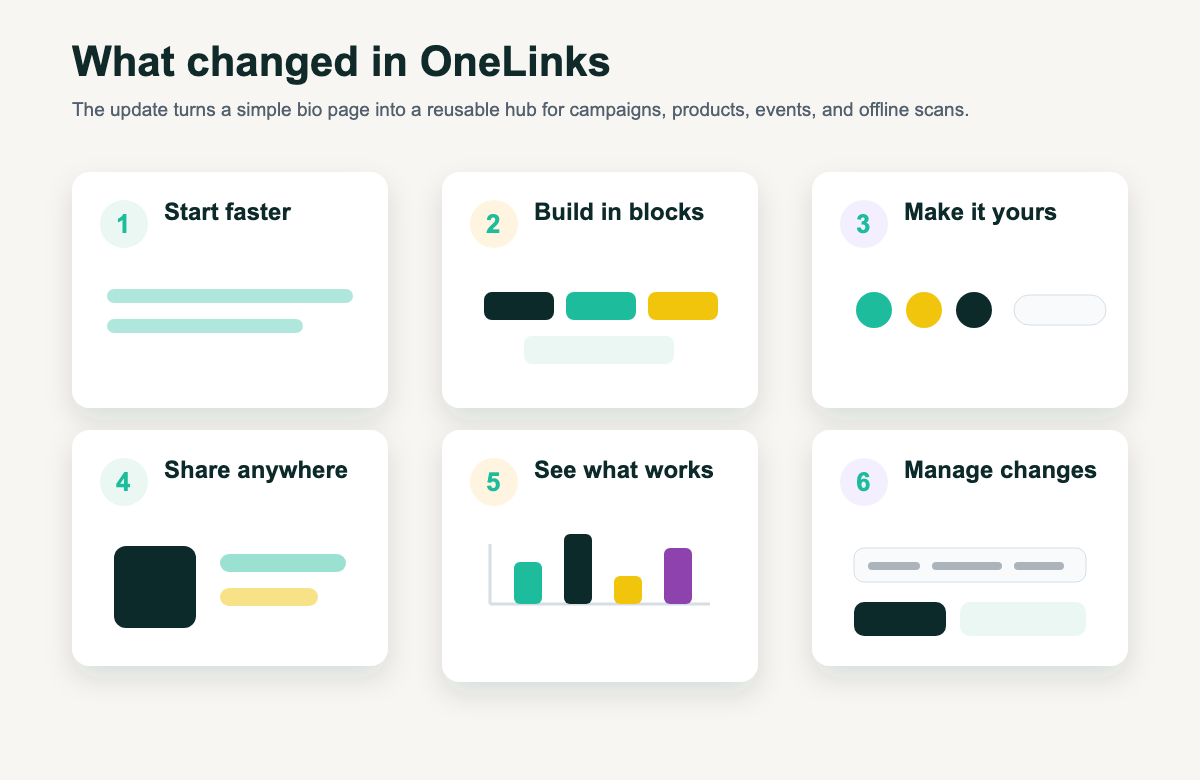
Here is what is new or improved:
- A cleaner OneLinks editor with Design, Blocks, and Settings tabs
- A template gallery with 12 ready-made templates
- A block builder with 19 block types
- Better drag-and-drop editing
- Live preview while you build
- More theme controls for colors, fonts, buttons, spacing, radius, and type scale
- QR code blocks with URL and vCard support
- Product, gallery, FAQ, map, countdown, booking, podcast, video, and review request sections
- Link images for richer button layouts
- Share buttons on public OneLinks
- Link-level click tracking
- OneLink analytics for visits, unique visits, QR scans, referrers, platforms, languages, countries, and cities
- Password protection
- Edit history
- Better empty states, previews, and mobile editing
This is more than a cleaner screen. OneLinks is becoming a small landing page builder for the places where a full website is too much and a plain short link is not enough.
Why this update matters
The link-in-bio page used to be a workaround. Social platforms gave you a single profile link, so people made a page with the rest of their links.
That is still part of it. Instagram added support for up to five profile links in April 2023, but even then the page is still limited. TechCrunch noted at the time that link-in-bio tools grew because social platforms had long limited external links. That problem did not disappear. It just changed shape. Source: TechCrunch, April 18, 2023.
The bigger shift is that social traffic is more commercial now.
IAB reported on November 20, 2025 that U.S. creator ad spend was projected to reach $37 billion in 2025, up 26% year over year. The same report said creator campaigns are being judged on business outcomes too, with online sales and ROI showing up as major goals and KPIs. Source: IAB, November 20, 2025.
Deloitte's social commerce research found that 72% of consumers are willing to buy directly within social media platforms, and 60% want more ways to discover and buy products on social. Deloitte also found that 47% of people who engage with a creator endorsement will visit the brand's website. Source: Deloitte.
That means the link in your bio is no longer just a list of places to find you. It is a handoff point. A campaign hub. A product shelf. A digital business card. A QR destination. Sometimes it is the only page someone sees before deciding whether to click, buy, book, save, or leave.
QR codes have the same problem. The scans are there, but the measurement is often weak. EMARKETER wrote on March 23, 2026 that QR code adoption is near-universal, but only 12% of marketers measure revenue contribution from QR codes. Source: EMARKETER, March 23, 2026.
That is the bet behind this OneLinks update: make the page easier to build, then make the performance easier to understand.
What changed in OneLinks
1. A cleaner editor
The old OneLinks editor worked, but it had started to feel cramped.
The new editor is split into three tabs:
- Design for templates and theme controls
- Blocks for page sections
- Settings for the short URL, tags, password protection, and other page-level details
That sounds small. It is not.
When you are building a page, you should not have to hunt through one giant form. You should be able to think in layers:
- What should this page look like?
- What should be on it?
- How should it be shared and managed?
The new layout follows that flow.
There is also a live preview next to the editor, so changes feel real as you make them. Pick a template, change the accent color, add a product block, reorder your links, and you can see the page taking shape without opening a separate tab every time.
2. Templates that give you a real starting point
Blank pages are overrated.
Sometimes you know exactly what you want. Most of the time, you just want a good starting point so you can change the parts that matter.
OneLinks now has a template gallery with 12 templates, grouped into three practical categories:
- Link-in-bio
- Digital business card
- Products
You can also start from scratch.
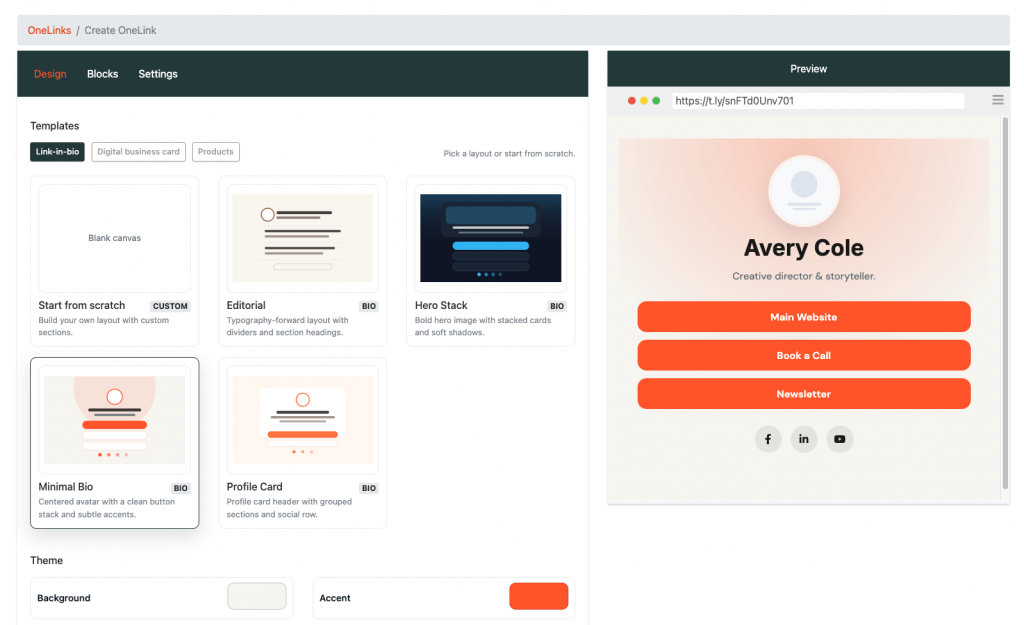
The templates are more than color presets. They come with blocks, layouts, fonts, and sensible example content. A creator can start with a clean bio page. A consultant can start with a digital card. A small shop can start with a product layout.
The current template set includes:
| Category | Templates |
|---|---|
| Link-in-bio | Minimal Bio, Hero Stack, Profile Card, Editorial |
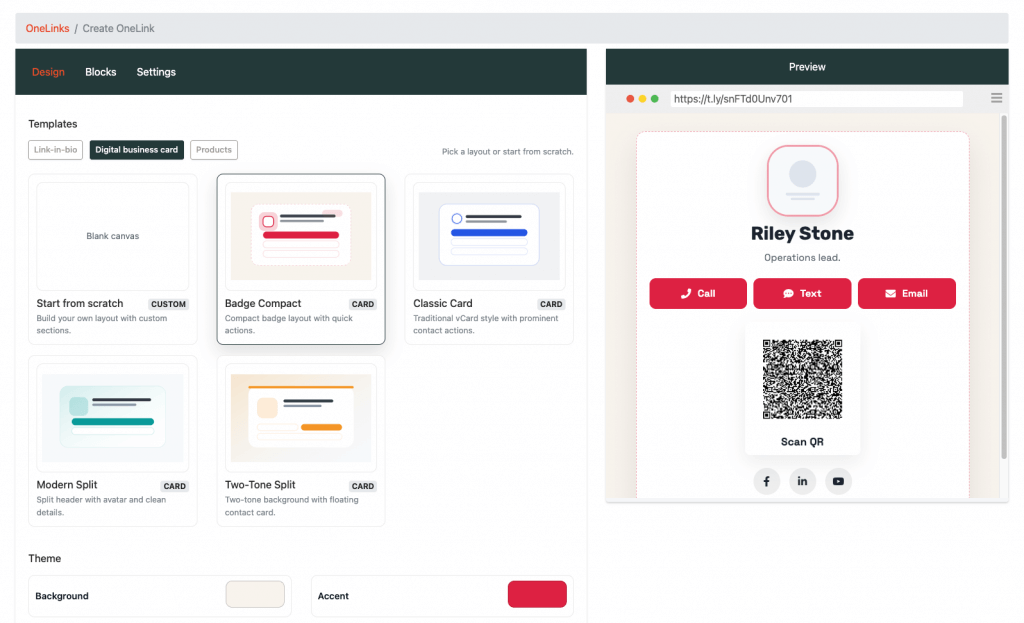
| Digital business card | Classic Card, Modern Split, Two-Tone Split, Badge Compact |
| Products | Products Grid, Featured Focus, Catalog, Story |
This matters because a OneLink usually gets built in a hurry. Someone is launching a campaign, heading to an event, updating a bio, printing a QR code, or sending a customer to one place. Templates cut the setup time down without locking you into one rigid look.
3. Better theme controls
OneLinks should feel like your brand, not ours.
The new theme controls let you adjust:
- Background color
- Text color
- Accent color
- Card color
- Heading font
- Body font
- Button style
- Border radius
- Spacing
- Type scale
This gives you enough control to make the page feel intentional without turning the editor into a full design tool. That balance matters. Too little control and every page looks the same. Too much control and users spend 45 minutes deciding if a button should be 17 or 18 pixels tall.
The goal is simple: pick the vibe, make it match your brand, publish.
4. A block-based builder
This is the biggest change.
OneLinks now uses a block-based builder, so the page is made from sections instead of one fixed layout.
You can add, edit, remove, and reorder blocks. The block picker is grouped so it is easier to find what you need:
- Popular
- Content
- Media
- Business
- Tools
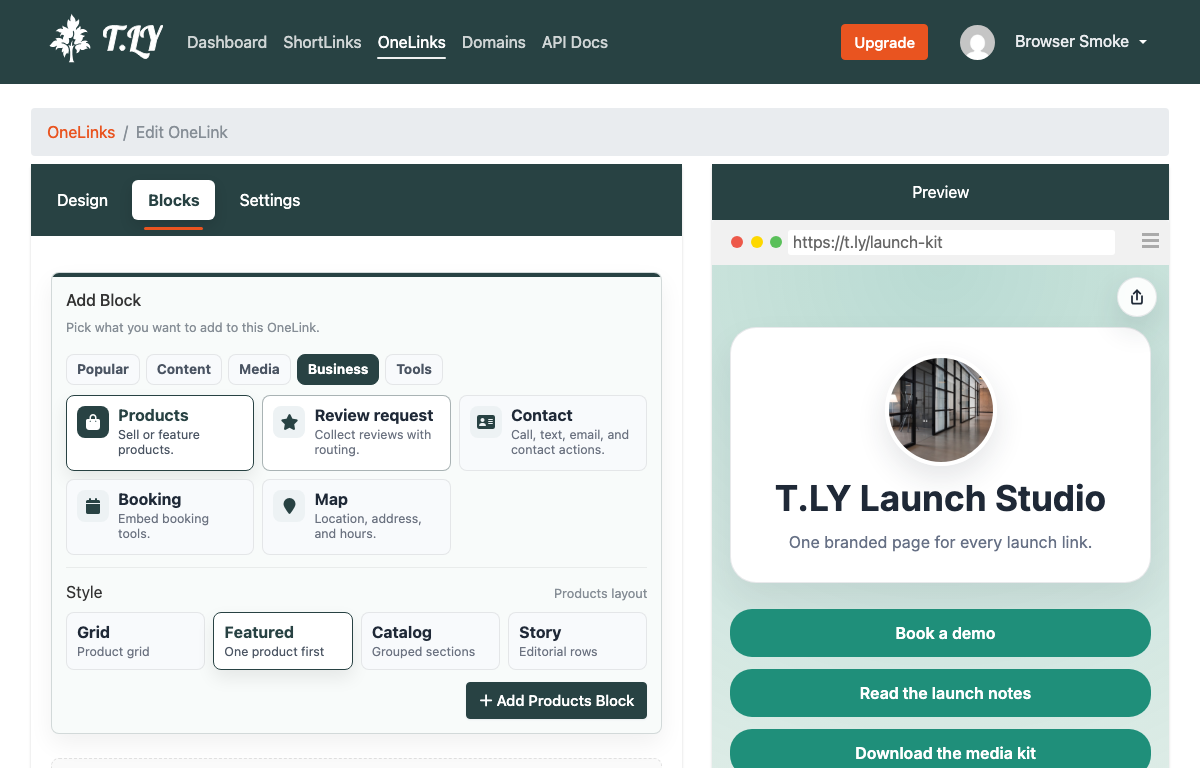
There are now 19 block types:
| Block | Good for |
|---|---|
| Links | Buttons to your most important URLs |
| Text | Headlines, intros, notes, and page copy |
| Image | A cover image or visual highlight |
| Social | Social profile icons or social pills |
| Video | YouTube, Vimeo, and other video embeds |
| Divider | Clean separation between sections |
| Profile | Name, bio, and profile photo |
| Hero | A larger intro section with an image |
| Callout | A featured offer, update, or announcement |
| Products | Product grids, featured products, catalogs, and story layouts |
| Review request | Route happy customers to reviews and others to feedback |
| Contact | Call, text, email, and website actions |
| QR code | Add a scannable QR block to the page |
| Podcast | Embed a podcast player |
| Booking | Embed booking tools |
| Gallery | Show multiple images |
| FAQ | Answer common questions |
| Countdown | Count down to a launch or event |
| Map | Location, address, directions, and hours |
That opens up a lot of better use cases.
A creator can add links, video, a newsletter callout, and a few social profiles.
A real estate agent can add a profile, contact buttons, current listings, a map, and a QR code for an open house flyer.
A small brand can add products, FAQs, a launch countdown, and a review request.
An event team can add a schedule, venue map, vendor kit, contact buttons, and a QR code for badges or signs.
Same product. Different job.
5. Layout variants
Blocks also have variants.
For example:
- Profile blocks can be centered, card-style, vCard-style, split, or badge-style
- Links can be stacked or horizontal
- Products can be a grid, featured layout, catalog, or story format
- Social links can be an icon row, pills, or a lighter line style
- QR blocks can be a full card or compact card
- FAQ blocks can be accordion or list style
- Map blocks can be a map layout or compact address card
This is one of those UX details that saves time.
You do not need to delete a section and rebuild it just because the layout feels wrong. Switch the style. Keep moving.
6. Richer link blocks with images and stats
Links are still the core of OneLinks, but they are more flexible now.
You can build basic button stacks, horizontal quick links, product-style links, and links with images. That image support is useful when the destination is visual: a product, property, article, menu item, video, download, or offer.
The editor also shows more useful link previews while you work. Instead of every block feeling like a mystery row in a form, the editor gives you a quick read on what is inside.
Even better: OneLinks now tracks clicks on individual OneLink links. That means you can stop guessing which button did the work.
Page visits are helpful, but link-level clicks answer the better question:
What did people choose once they got there?
That is the difference between "our bio link got traffic" and "the pricing link beat the demo link 3 to 1."
7. QR codes and vCards built into the page
OneLinks now fits offline sharing better.
You can add QR code blocks directly inside a OneLink. QR blocks support normal URL mode and vCard mode, which makes them useful for digital business cards, conferences, printed flyers, menus, packaging, and in-store materials.
Your team's default QR styling can carry through, and individual QR blocks can be customized when needed.
This is one of my favorite parts of the update because it connects the online and offline use cases. A OneLink can be the page behind your Instagram bio and the page behind the QR code on your booth sign. Same hub. Different entry point. Cleaner reporting.
8. Public share buttons
Public OneLinks now include a share button.
Visitors can copy the OneLink or share it through common sharing options like Facebook, WhatsApp, LinkedIn, and X. The share modal uses the OneLink's profile details, so it feels connected to the page instead of being a generic browser share.
This is a small UX improvement, but it is the kind that matters in the wild.
If someone likes a profile, product collection, event page, or business card, sharing should be obvious.
9. Better analytics
OneLinks now give you a clearer view of performance.
At the OneLink level, you can track:
- Visits
- Unique visits
- QR scans
- Daily activity
- Referrers
- Browsers
- Platforms
- Languages
- Countries
- Cities
At the link level, you can track:
- Total clicks
- Unique clicks
- Daily clicks
- Browser, location, platform, language, and referrer breakdowns
This matters for anyone using a OneLink as part of a campaign.
If you put one OneLink in your social bio, one on a QR code, and one in an email signature, you need to know more than "people visited the page." You need to know whether they clicked the booking link, product link, review link, YouTube video, podcast, catalog, or contact button.
That is where the link-level stats help.
10. A better OneLinks list
The OneLinks dashboard got cleaned up too.
Each OneLink now has a card-style row with:
- A small live preview
- Title and short URL
- Tags
- Created-by details
- Created date
- Visit count
- Unique visit count
- QR scan count
- Fast actions for edit, copy, stats, QR code, history, reset stats, and delete
There is also a better empty state for new accounts. Instead of dumping users into a blank table, OneLinks now points them toward the first useful action: create a page, pick a template, customize the design, and add links.
That is not flashy. It is just better.
11. Password protection
OneLinks can be password protected.
That makes them useful for pages that should not be wide open:
- Internal resource pages
- Client portals
- Event pages
- Private downloads
- Sales materials
- Limited-access links
The editor shows whether a OneLink is already password protected, lets you clear the password, and links to the shared password page customization settings if you want the password screen to match your brand.
12. Edit history
OneLinks now support edit history.
That is helpful for teams. If a page changes and performance drops, you can look back and see what changed. If someone updates a campaign page right before launch, there is a record.
This is especially useful when a OneLink becomes part of a recurring workflow. Bio links, business cards, and campaign hubs tend to get changed over and over. History keeps that from becoming a black box.
What I would use OneLinks for now
The obvious use case is still link in bio. That is not going away.
But the new builder makes OneLinks useful for more specific jobs:
Creator bio page
Use profile, links, video, podcast, social, newsletter callout, products, and FAQ blocks.
Good for creators who want one OneLink that changes with the latest post, drop, episode, sponsorship, or offer.
Digital business card
Use profile, contact, QR, map, links, and social blocks.
Good for conferences, sales teams, real estate agents, consultants, creators, recruiters, and anyone who still gets asked, "Can you send me your info?"
Product drop
Use hero, products, gallery, FAQ, countdown, callout, and links.
Good for launches where the full ecommerce site is too much and a single product link is too thin.
Event hub
Use text, links, map, contact, QR, countdown, gallery, and FAQ.
Good for conferences, meetups, open houses, workshops, popups, and school events.
Review request page
Use review request, contact, FAQ, and links.
Good for businesses that want a cleaner path from happy customers to public reviews, while still giving unhappy customers a way to send feedback first.
QR campaign landing page
Use hero, offer, product, FAQ, map, and analytics.
Good for printed flyers, packaging, direct mail, signs, receipts, menus, event badges, and table tents.
The point is not to make every OneLink huge. The point is to make it fit the job.
How to try the new OneLinks
- Log in to your T.LY dashboard.
- Go to OneLinks.
- Create a new OneLink or edit an existing one.
- Pick a template or start from scratch.
- Customize the theme.
- Add the blocks you need.
- Publish it.
- Check your stats after people start visiting and clicking.
If you want a quick product overview first, start with OneLinks. If you want setup help, read Create and edit a OneLink.
OneLinks FAQ
What is a OneLink?
A OneLink is a small landing page that holds multiple links, social profiles, products, contact actions, QR codes, and other blocks behind one short URL.
It is useful when you need one page to share in a bio, QR code, business card, campaign, event, or email signature.
Is OneLinks only for link-in-bio pages?
No. Link in bio is still a great use case, but OneLinks now works well for digital business cards, product pages, event hubs, QR campaign pages, review request pages, and lightweight landing pages.
Can I customize the design?
Yes. You can choose templates, change colors, pick fonts, adjust button styles, change radius and spacing, and use different block layouts.
Can I track clicks on individual links?
Yes. OneLinks can track page visits and individual link clicks, so you can see which destinations people choose after opening the page.
Can I use a QR code with a OneLink?
Yes. You can create QR codes for OneLinks and add QR code blocks inside a OneLink. QR blocks can point to URLs or vCard contact details.
Can I password protect a OneLink?
Yes. OneLinks support password protection, which is useful for private resources, client pages, internal materials, event pages, and limited-access content.
Final thoughts
I like updates that make a product feel less boxed in.
That is what this does for OneLinks.
It is still simple enough to make a clean link-in-bio page in a few minutes. But now it has enough structure for real campaigns: products, contact actions, maps, FAQs, QR codes, vCards, review flows, share tools, and analytics that show what people actually clicked.
That is the direction I want T.LY to keep going.
Short links are useful. QR codes are useful. OneLinks are useful.
But they get a lot more useful when they work together and tell you what happened after someone clicked or scanned.



Tim Leland
Useful Tools
Ready to improve how you manage links?
T.LY URL Shortener makes long links look cleaner and easier to share! Add your own Custom Domains to personalize your brand. Create Smart Links to customize a URL's destination. Generate QR codes to promote your business.
Sign Up for Free Browser Extension